Explore the Features of SlateRanger
Easy Tool Access
Access SlateRanger’s full toolset instantly, without navigating into a project.
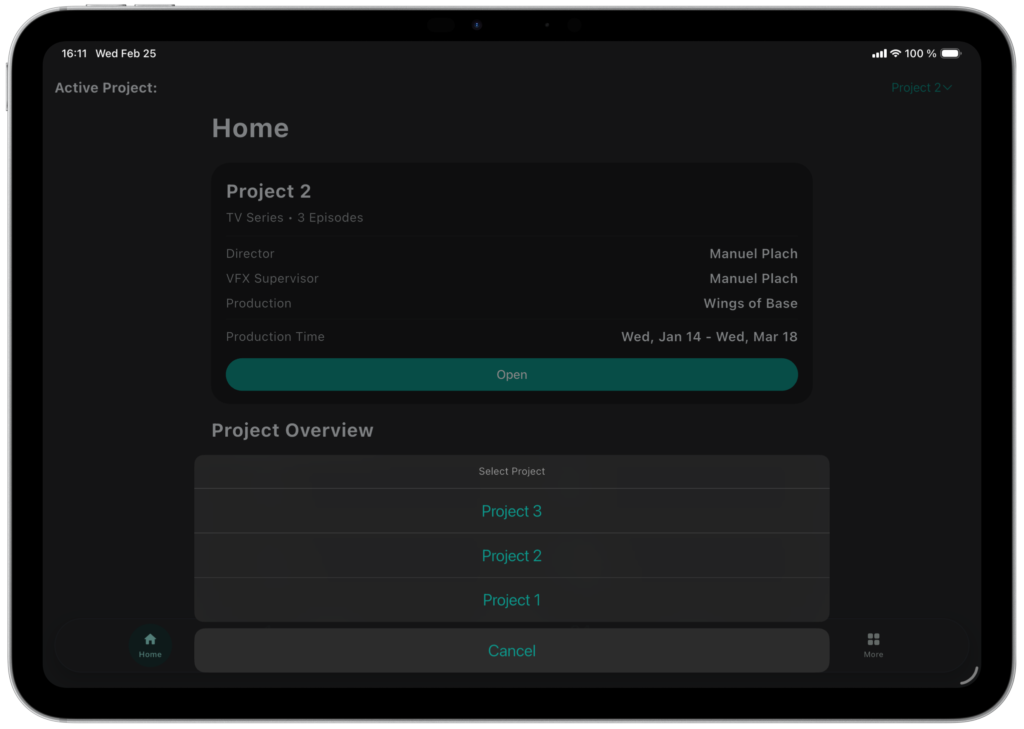
Active Project Selector
The Active Project Selector allows you to set a project as active, providing immediate access to project data and all tools without needing to open the Project Dashboard, thereby enabling a faster and more efficient workflow.
Slate & Take Management
SlateRanger allows you to easily manage all slates and takes, keeping your projects organized from start to finish.
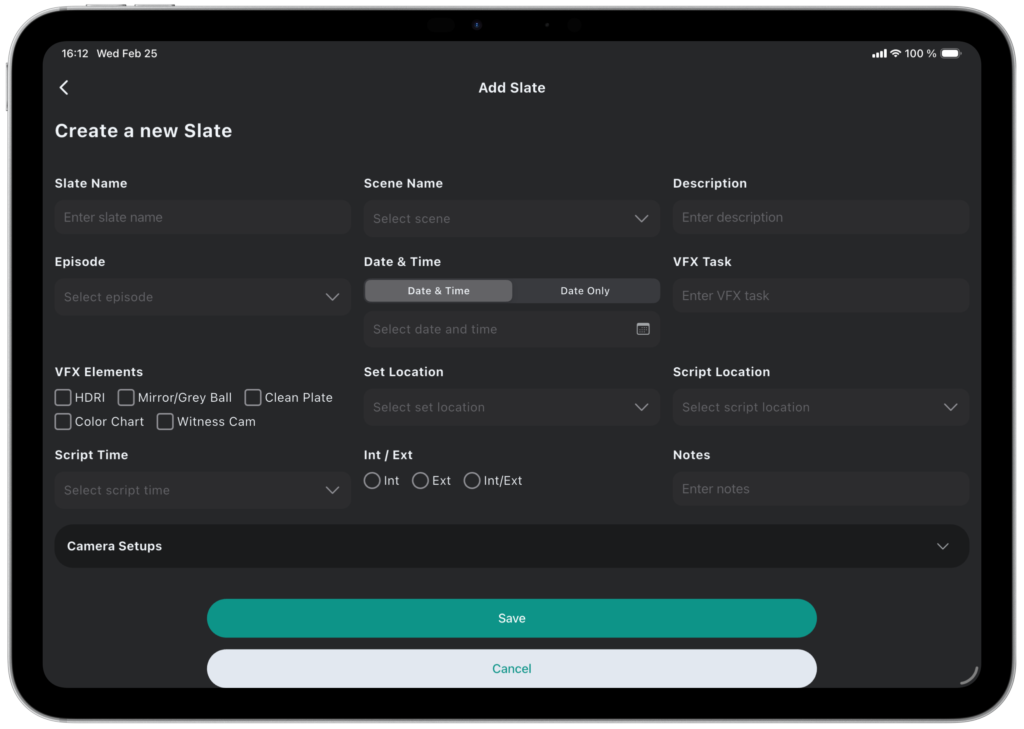
Add Slate Data
SlateRanger offers a comprehensive set of slate data fields, allowing users to capture and manage all relevant slate information accurately.
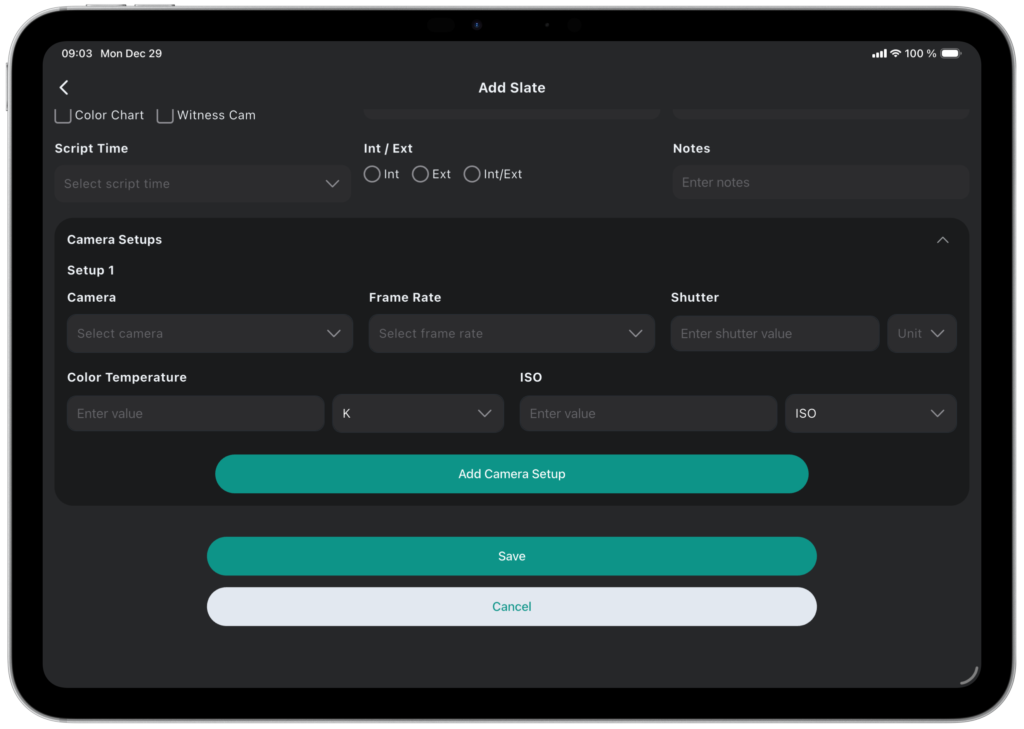
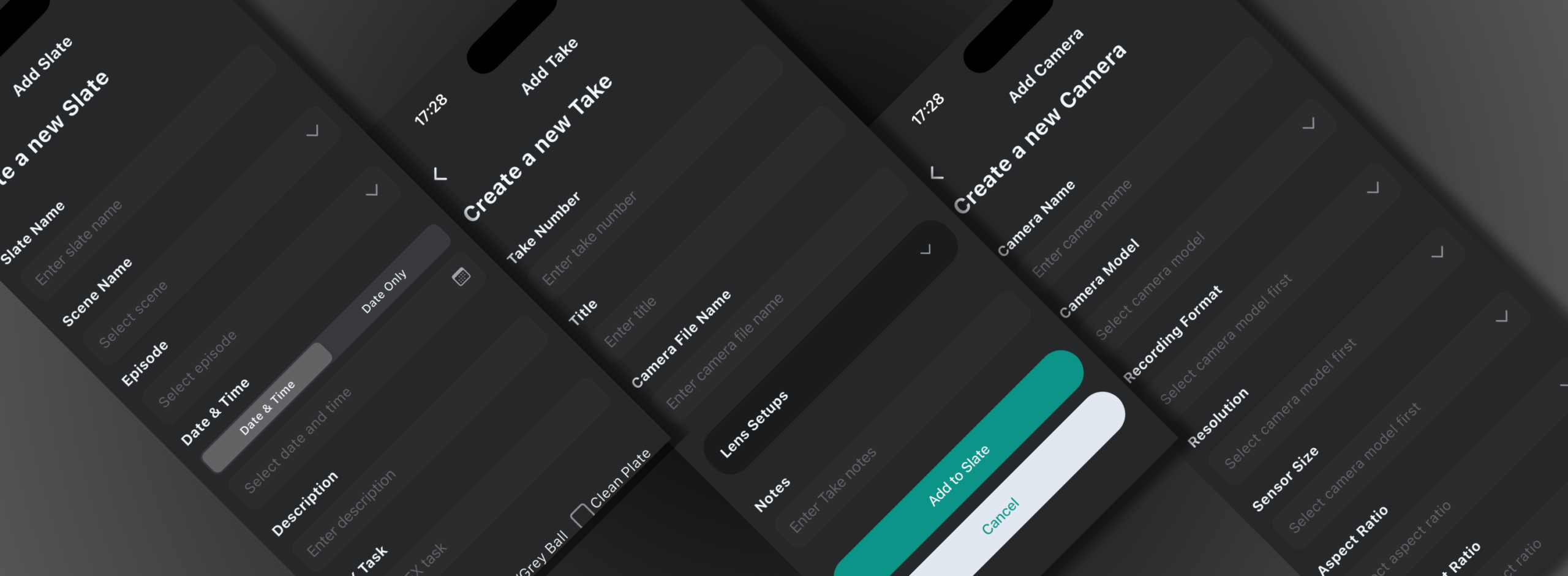
Set up your Camera for each Slate
For each slate, SlateRanger allows you to configure one or multiple cameras by applying final, slate-specific details to the project’s preconfigured camera setups.
Add Take Data
Within each slate, SlateRanger allows you to add and manage an unlimited number of takes, ensuring complete and accurate capture of on-set shooting variations.
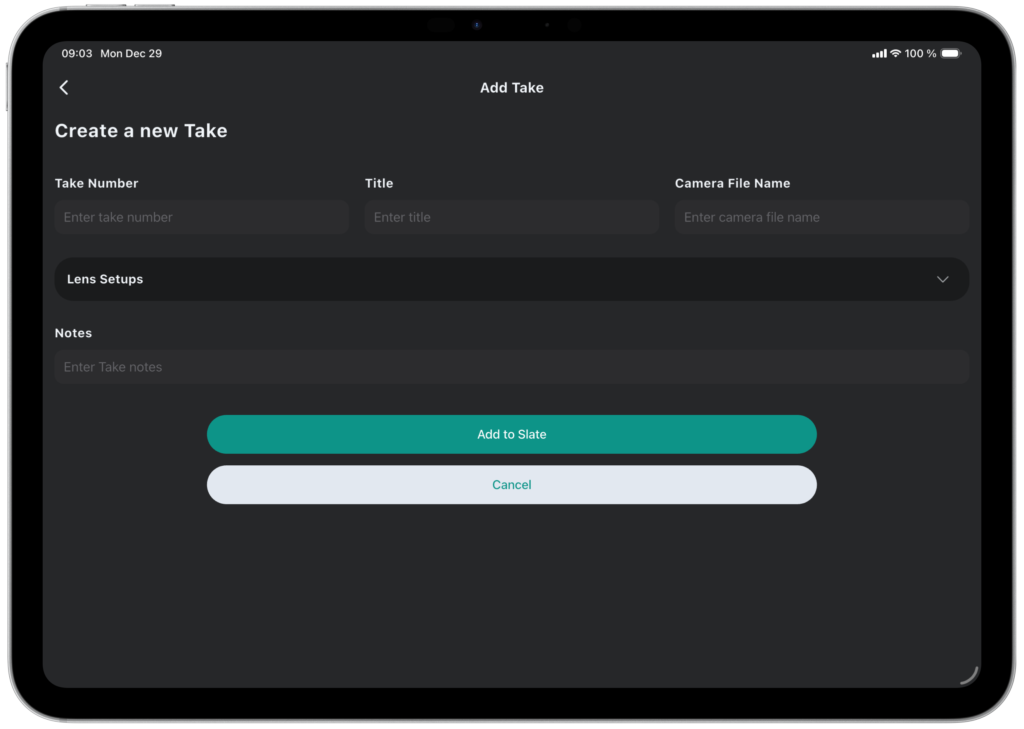
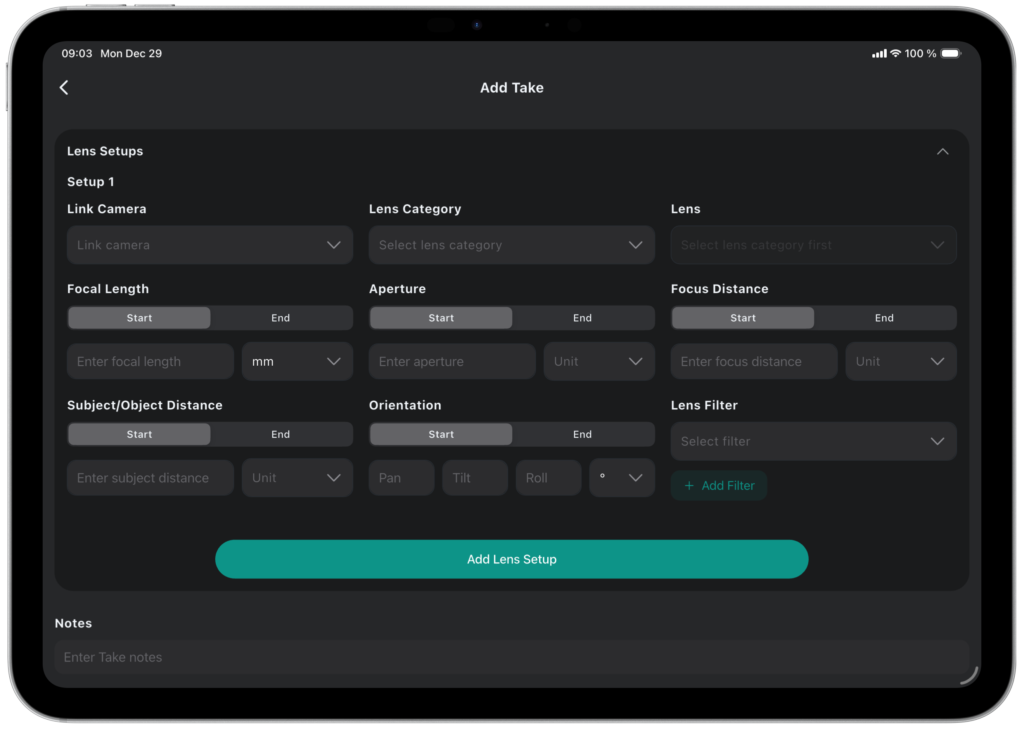
Set up your Lens for each Take
Because lens data typically changes more frequently than camera-specific settings, lens information is configured at the take level. Each lens can be directly linked to a specific camera, ensuring accurate and consistent data association.
For each lens category, SlateRanger offers a preset list of lenses to choose from.1
Camera Management
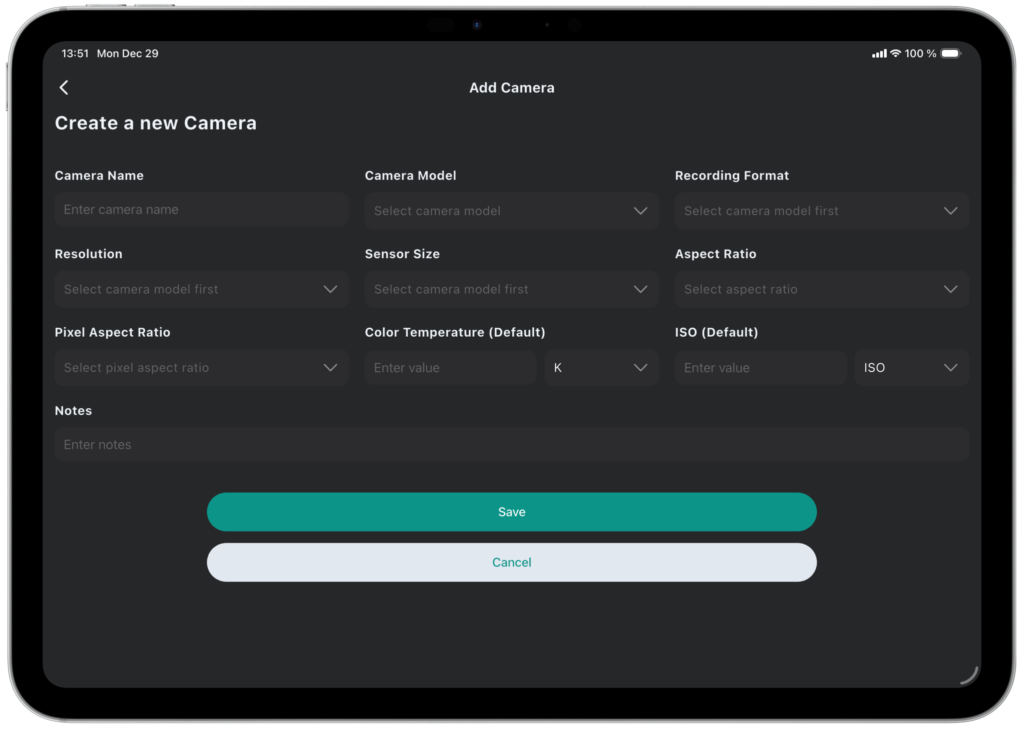
SlateRanger features a dedicated camera configuration page to ensure precise documentation of all cameras used during image capture.
Add Camera Data
This page enables you to define all base camera parameters, with additional slate-specific details completed within each slate’s camera setup. Color temperature and ISO can be assigned default values, but can be overridden per slate as needed.
SlateRanger currently includes over 25 built-in camera presets, covering camera models with their supported recording formats, resolutions and sensor sizes.2
Efficient Slate, Take and Camera Creation
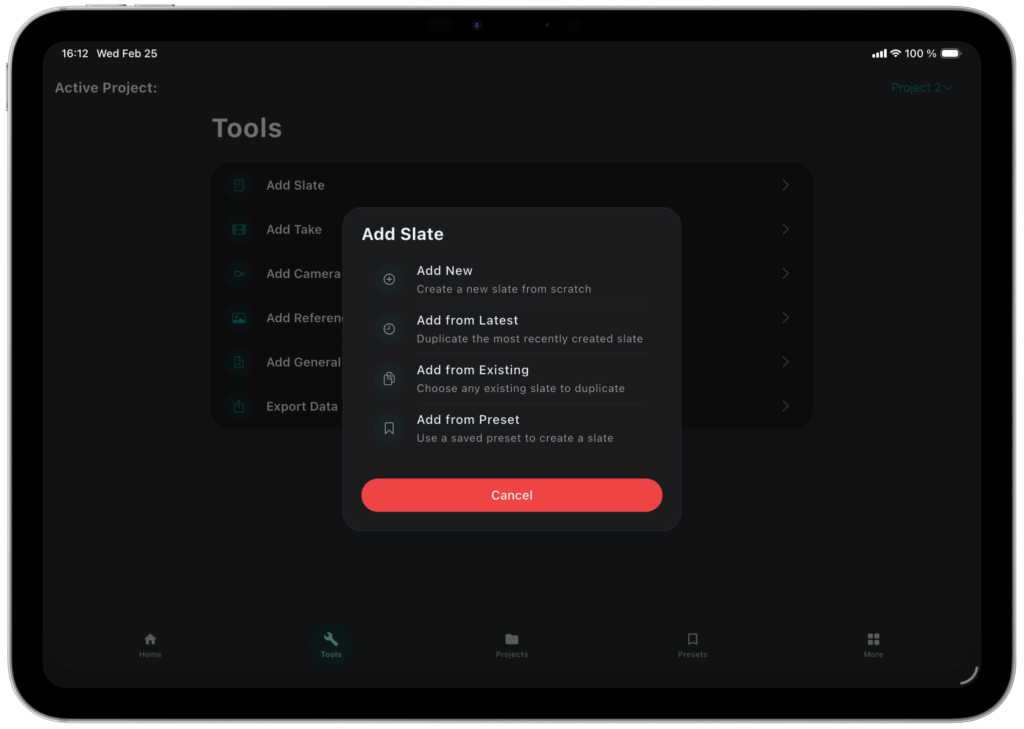
As production moves quickly on set, it is essential to add new records with minimal friction to ensure accuracy and uninterrupted workflows.
SlateRanger offers multiple options to help you stay on track while on set:
Add New
This option offers you the possibility to create a new record from scratch.
Add From Latest
This option automatically detects the most recent record and copies its field data, allowing you to edit and save it.
Add From Existing
This option lets you select an existing entry and copy its field data to create a new record.
Add From Preset
This option enables you to create a new entry by applying data from a preconfigured preset.
Presets
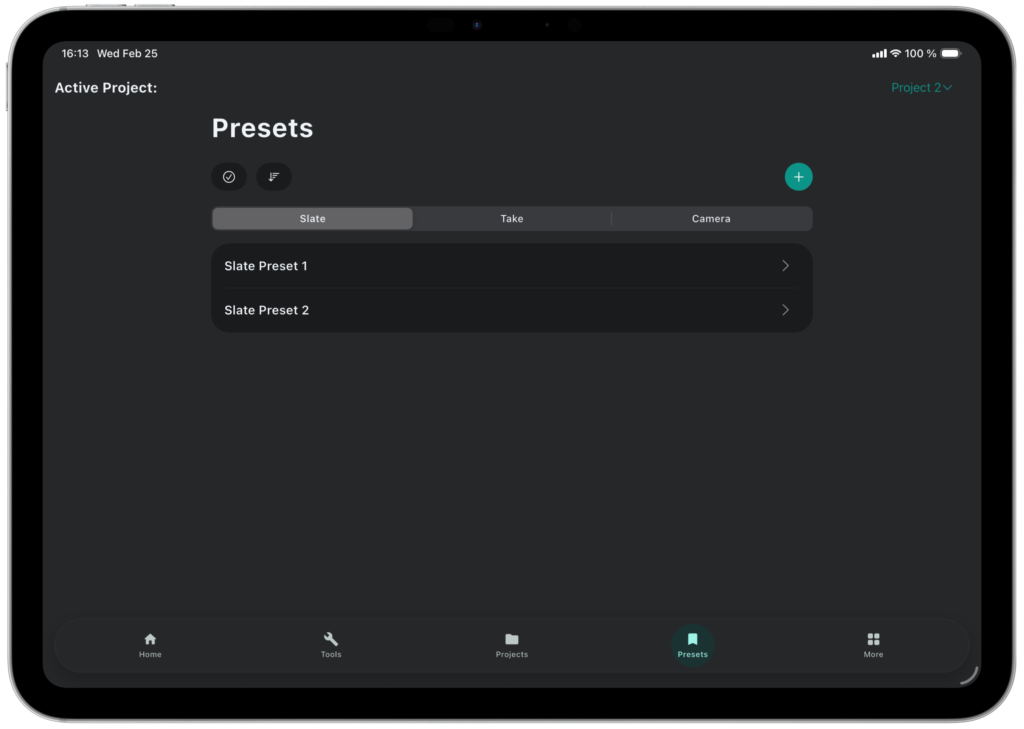
SlateRanger allows users to create reusable presets for slate, take, and camera data, streamlining on-set data entry and ensuring consistency across the project. By defining commonly used parameters in advance, setup time can be reduced significantly, minimizing errors and maintaining consistent data.
Create reusable Presets
The presets page is thoughtfully designed to manage slate, take, and camera presets all in one place while maintaining a clear and intuitive layout. Each preset can be assigned a unique name for easy identification and quick access during production.
Reference Media
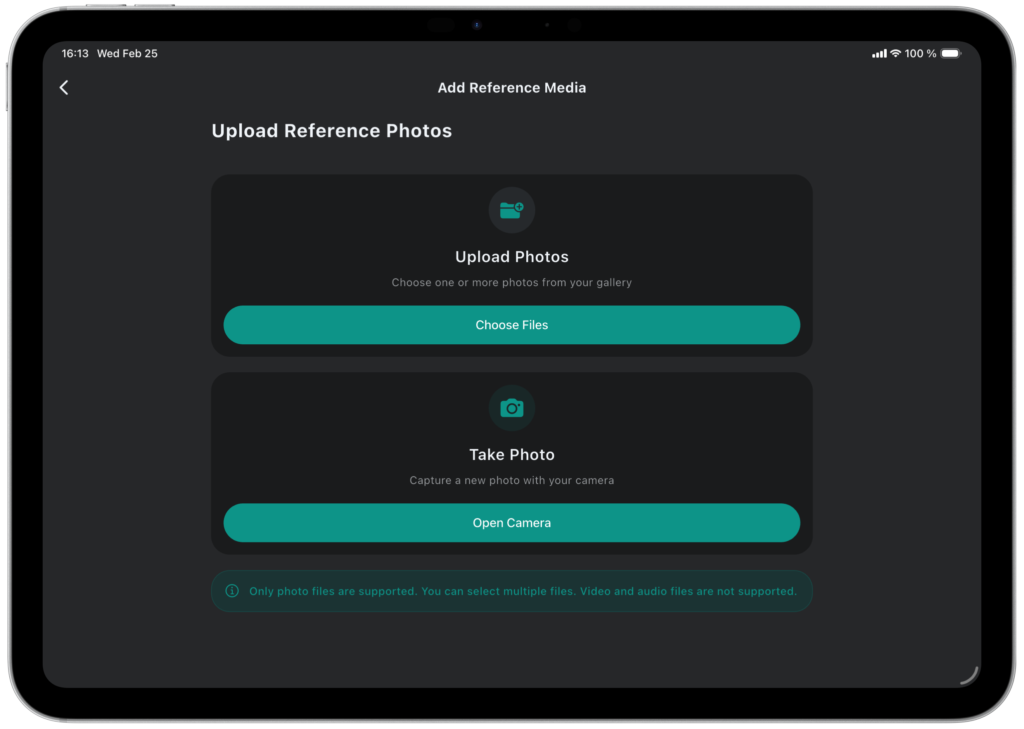
Use Reference Media to upload photos and link them to your slates, providing a visual record of on-set details. Helping your team stay organized and ensuring consistent documentation across the production.
Add Reference Media
On the Reference Media page, you can either upload images from your device or capture photos directly within SlateRanger. Once uploaded, images can be added immediately to a slate or annotated first, giving you full control over visual references.
Take Your Workflow Anywhere
As productions don’t always take place under ideal conditions, SlateRanger allows you to save your data even without an active internet connection when using the iOS or Android app. The data will automatically sync once a connection is reestablished.
1
Activate Offline Mode
While it is possible to save data without activating Offline Mode when the connection is unstable or unavailable, enabling Offline Mode is recommended. When activated, SlateRanger suspends automatic syncing, ensuring a more stable and smooth workflow.
2
Collect your Data
While Offline Mode is active, you can continue working as usual with saving project and preset data. Some functions, for example, user management and authentication, require an active internet connection at all times. Keep in mind that, since data is not synced, team members will not be able to see your edits until you are back online.
3
Deactivate Offline Mode
Once a stable connection is available, Offline Mode can be deactivated to sync your data. While SlateRanger supports offline data saving, it is not optimized for permanent offline work. For the best performance and full team collaboration, it is recommended to work online whenever possible.
Team Collaboration
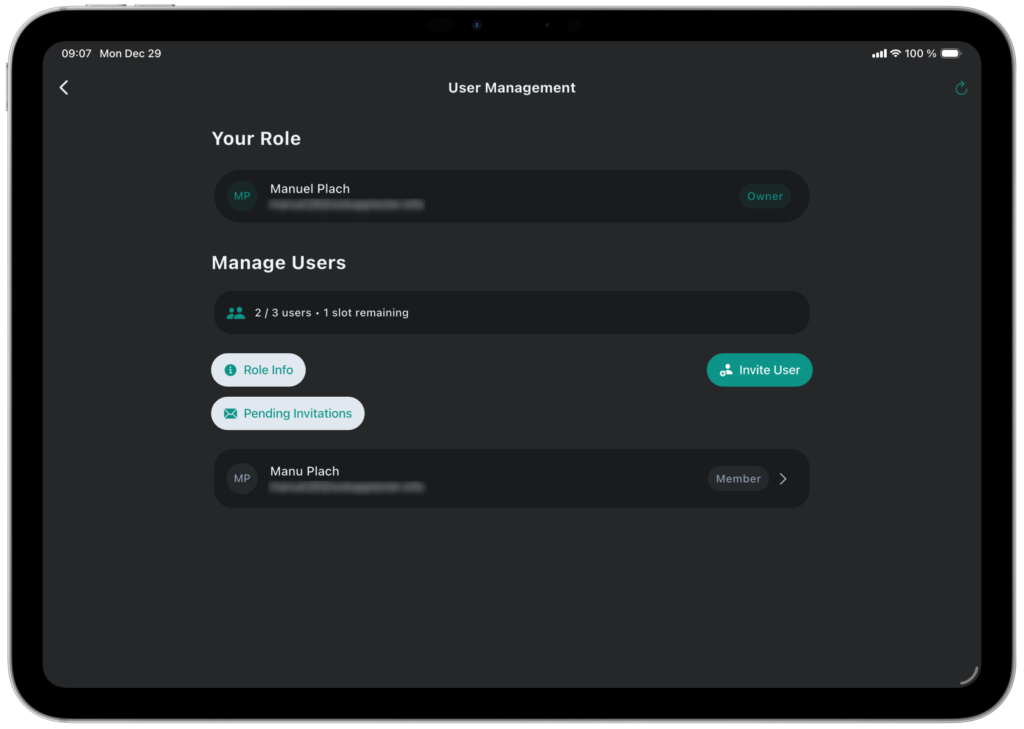
Depending on your subscription, SlateRanger allows you to add additional users to your team to collaborate on projects.
Manage Users within your Team
Additional users can be added directly within the app, without the need for email invitations. To send an invitation, the user must already have a SlateRanger account and must not have a subscription or be part of another team. Each user is assigned a dedicated role before the invitation is sent, which can be changed later if needed. The available roles are explained in the following section.
Available Roles
At the moment, SlateRanger provides four distinct role types that users can hold within a team. Each role defines a different level of permission.

Owner
This is the only role that cannot be assigned. It is automatically given to the user who has signed up for a subscription.
The Owner has full access to all features and settings, including user and subscription management. There can only be one Owner per workspace.

Admin
Admins have the same rights as the Owner except for subscription management.

Member
Members can create and edit content within projects. They are not allowed to create projects or edit their settings.

Viewer
Viewers can browse projects and read content, but cannot make changes. They can be given the option to export project data if needed.
Export your Data
At the end of each production, it is essential to be able to export the collected data in a structured and purposeful manner. To support this need, SlateRanger provides a comprehensive set of efficient export options for set reports and reference media in formats tailored to the requirements of both standard and episodic projects.
Choose from multiple Options
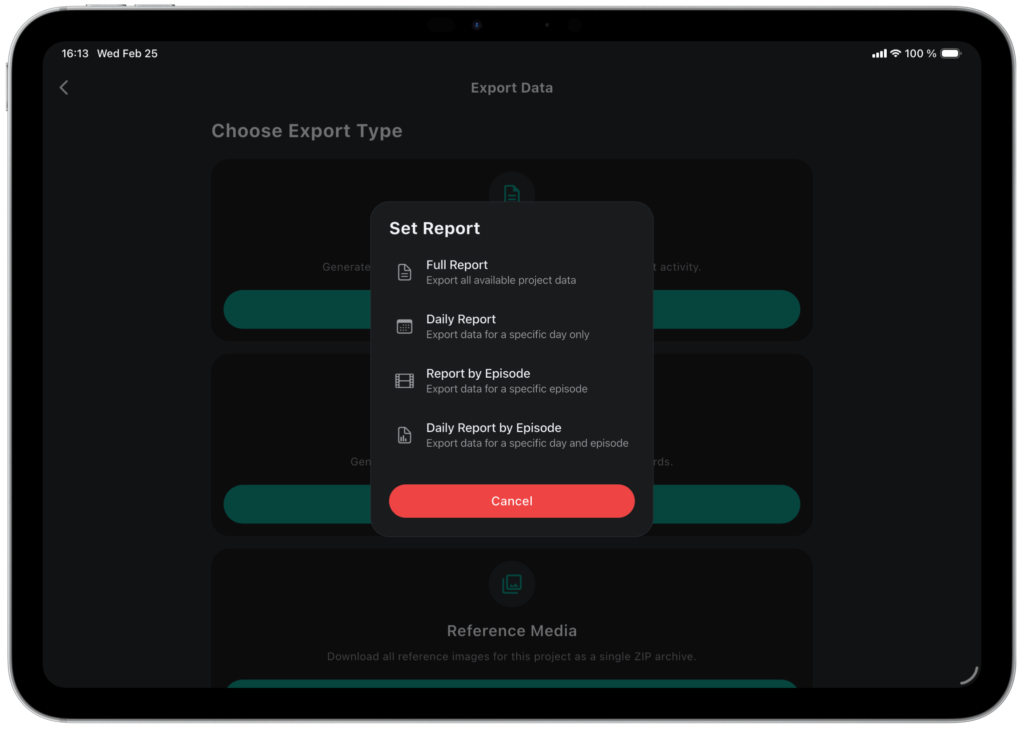
SlateRanger offers versatile export options for both reports and reference media: full and daily exports are available for all projects, while episodic projects also support episode-based and daily exports by episode.
Artist Dashboard
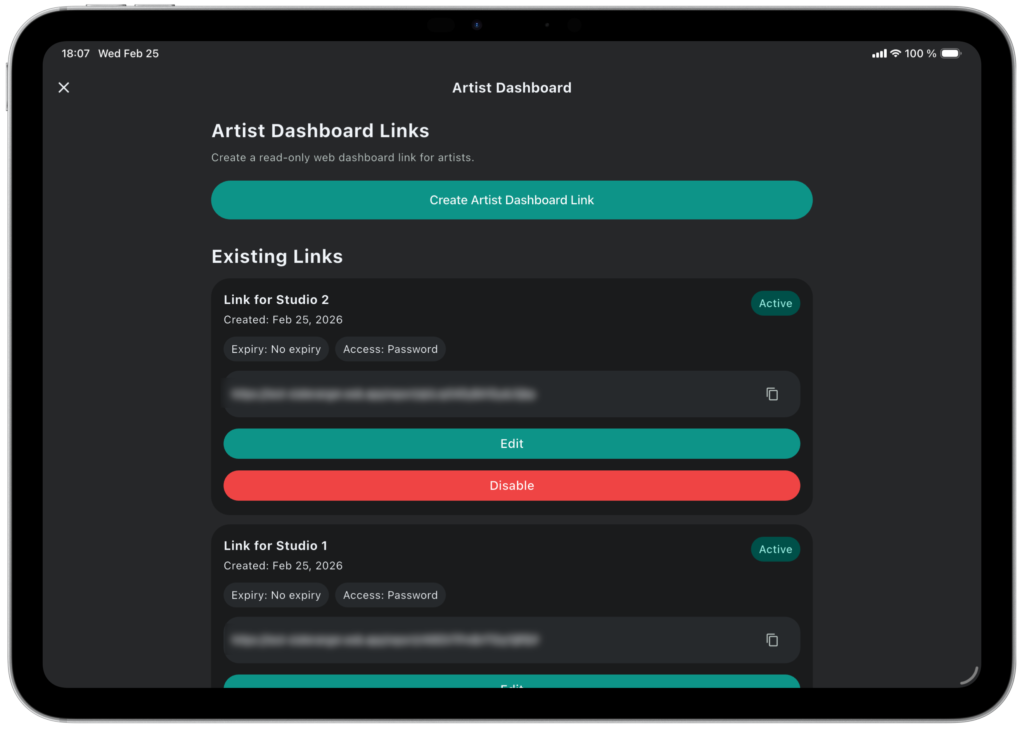
The SlateRanger Artist Dashboard enables you to generate shareable, editable links so artists can seamlessly access and work with the report in post-production.
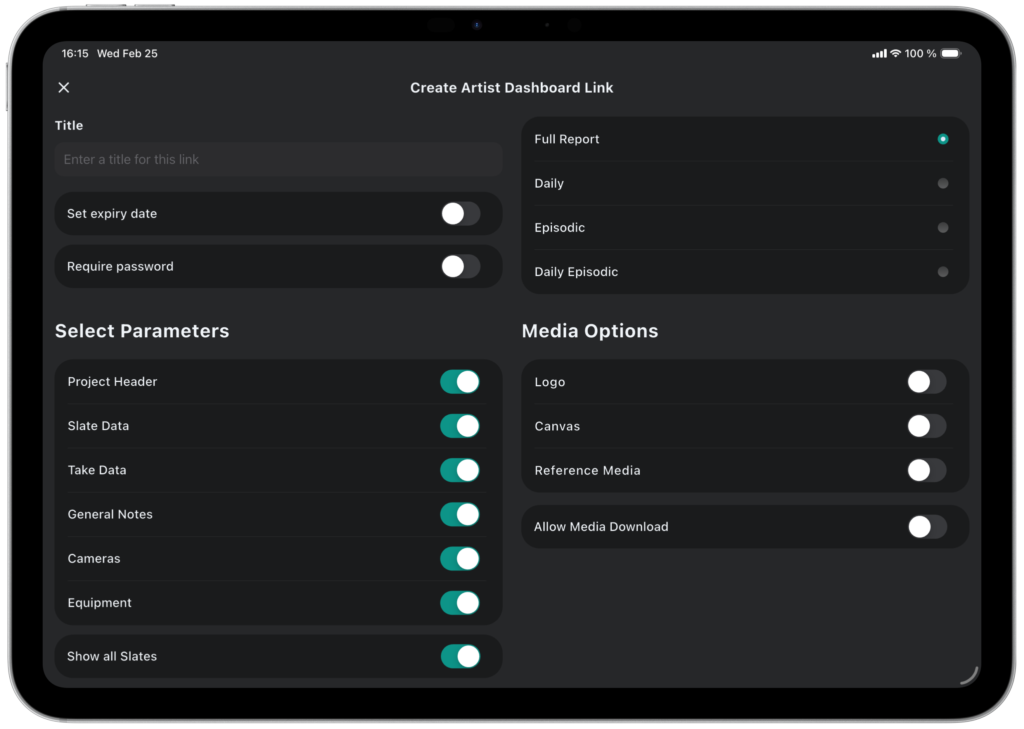
Configure your Artist Dashboard Links
The SlateRanger Artist Dashboard allows for extensive configuration tailored to each export destination.
Export your Set Report
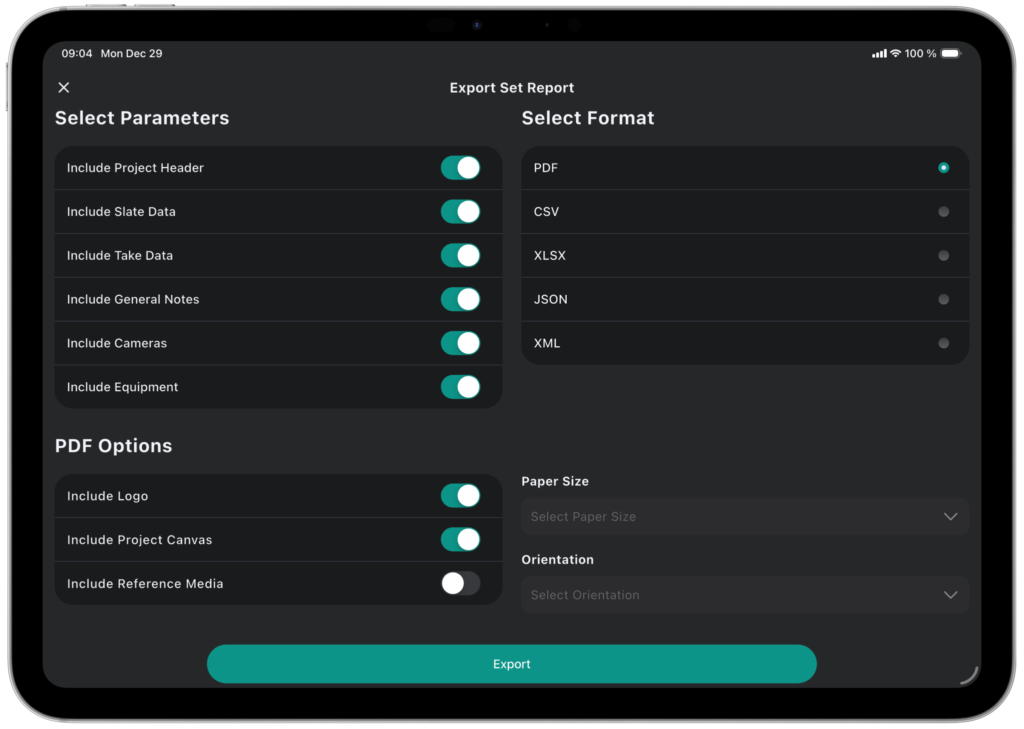
With SlateRanger, you can choose between multiple formats and parameters of your project you want to include/exclude.
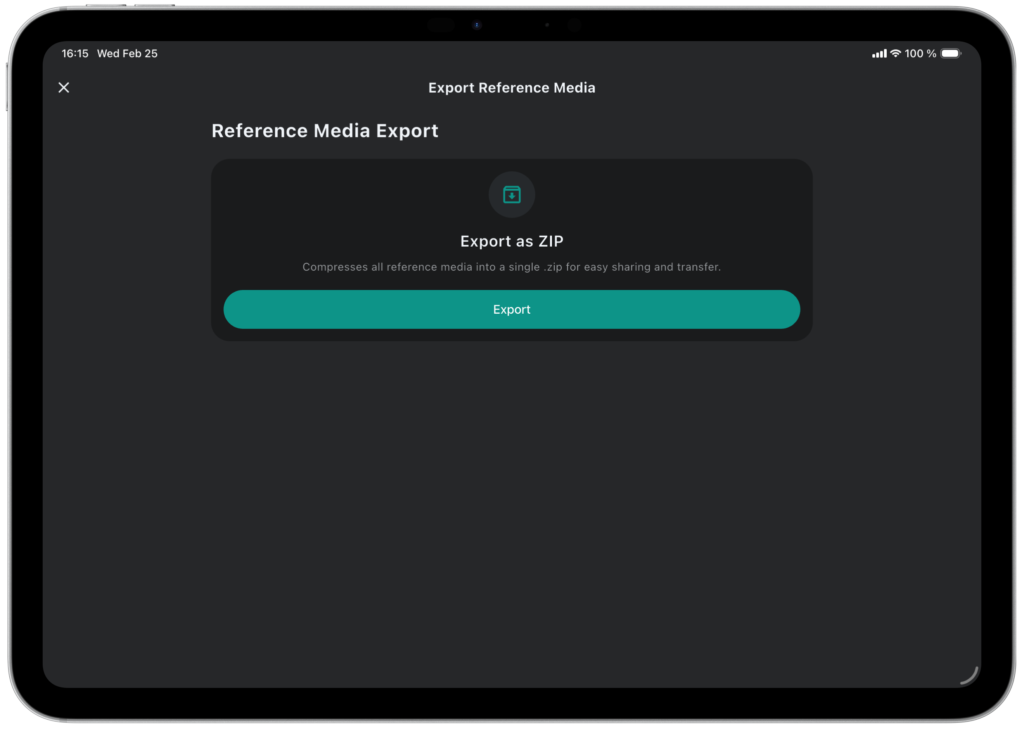
Export your Reference Media
Reference media can be exported via the Export Data option only as a ZIP file. To download individual files, this must be done from the Reference Media Overview.


1 While every effort is made to ensure accuracy, lens specifications are provided without guarantee. Please verify critical information independently where required.
2 While every effort is made to ensure accuracy, camera specifications are provided without guarantee. Sensor sizes per resolution are based on manufacturer data when available. Otherwise, they are internally calculated. Please verify critical information independently where required.