

Need Help?
We’ve Got You Covered!
Check the SlateRanger User Guide
SlateRanger includes a comprehensive user guide to help you quickly find answers and solutions. You can download it here or access it directly in the app under
More > Help Center > User Guide.
Frequently Asked Questions
Getting Started
SlateRanger is a professional on-set data management app designed for VFX supervisors and data wranglers. It helps you organize and track slates, takes, camera setups, reference media and equipment during production. All data syncs across devices and can be exported as PDF, CSV, XLSX, JSON or XML reports.
Navigate to the Projects tab from the bottom navigation bar and tap the “+” button to create a new project. Enter the project name, production company, director, DOP, VFX supervisor and production dates. You can also add a project logo and canvas image. Once created, you can start adding slates, takes, cameras and reference media.
You can switch projects using the “Active Project” dropdown in the top navigation bar which is available on all main screens. Alternatively, navigate to the Projects tab and tap on any project card to open its dashboard.
Account & Security
On the login screen, tap “Forgot Password?” and enter your email address. You’ll receive a password reset link via email. Click the link and follow the instructions to create a new password.
Go to the More tab > Account Settings > Change Password. Enter your current password and your new password.
Multi-factor authentication adds an extra layer of security to your account. When enabled, you’ll need to enter a verification code sent to your phone via SMS in addition to your password when signing in. Enable or disable MFA in More > Account Settings.
Go to More > Account Settings > Change Email. Enter your current password and your new email address. A verification email will be sent to your new address to confirm the change.
Active Sessions shows all devices currently logged into your account. You can have up to 2 active sessions at a time. Go to More > Account Settings > Active Sessions to view and manage your sessions. If you see an unfamiliar device, you can remove it to sign out that device immediately.
Go to More > Account Settings > Active Sessions. You’ll see all devices where you’re logged in. Tap on any session and select “Remove” to sign out that device instantly. The other device will be logged out immediately and shown a notification that their session was ended remotely.
This means someone (likely you from another device) removed your session from Active Sessions. This is a security feature that lets you sign out devices remotely. If you didn’t do this, change your password immediately as someone else may have access to your account.
Absolutely. All data is encrypted in transit and at rest using industry-standard encryption. The database and storage are secured with strict security rules to ensure users can only access their authorized data.
Team & User Management
Yes, if your subscription plan supports multiple users. The Lite and Solo plans are single-user only. Pro allows up to 3 users, Team up to 10, and Enterprise up to 25. To invite someone, go to More > User Management and search for their email. Important: The person you want to invite must already have a SlateRanger account without an existing team or subscription. Once found, select their role (Admin, Member, or Viewer) and send the invitation.
There are four roles: Owner (full access), Admin (can manage users and all projects), Member (can create and edit content on projects), and Viewer (read-only access to assigned projects, can export if permitted).
Go to More > User Management, find the team member, and tap on their card.
Go to More > User Management, find the team member, and tap on their card. Select “Remove from Team” and confirm the action. The user will lose access to the team and its projects immediately.
Data & Sync
Data syncs automatically in the background when you have internet connectivity. Changes made offline are queued and uploaded when you reconnect.
Yes, you can create slates, takes, cameras, notes and reference media even without connectivity. While it is possible to save data without activating Offline Mode when the connection is unstable or unavailable, enabling Offline Mode is recommended. Some functions, for example user management and authentication require an active internet connection at all times. Keep in mind that, since data is not synced, team members will not be able to see your edits until you are back online. While SlateRanger supports offline data saving, it is not optimized for permanent offline work. For the best performance and full team collaboration, it is recommended to work online whenever possible.
Yes, but this action is permanent. Go to the Projects tab, select the project, and tap the delete icon. Confirm the deletion.
Troubleshooting
Try these steps: 1) Close and reopen the app. 2) Check your internet connection. 3) Deactivate Offline Mode if enabled and a lot of data has been collected. 4) Update to the latest app version. If issues persist, contact support.
First, check your internet connection. If connected but not syncing: 1) Pull down to refresh on any list screen. 2) Sign out and sign back in. If issues persist, contact support.
This can happen if the app was not closed correctly, for example when your computer crashed or the browser was closed forcefully while the app was open. To fix this, clear all browser data for SlateRanger (cookies, cache, and site data) and then try again. In most browsers, you can do this in Settings > Privacy > Clear browsing data, or by clicking the lock icon in the address bar and selecting “Site settings”.
Go to More > Help Center > Support to submit a bug report or feature request. Include as much detail as possible: what you were doing, what happened, device model, and app version. Screenshots help us understand issues faster.
Contact us
Did not find an answer? Reach out anytime!
Support Mail: support@slateranger.com
How to delete your account
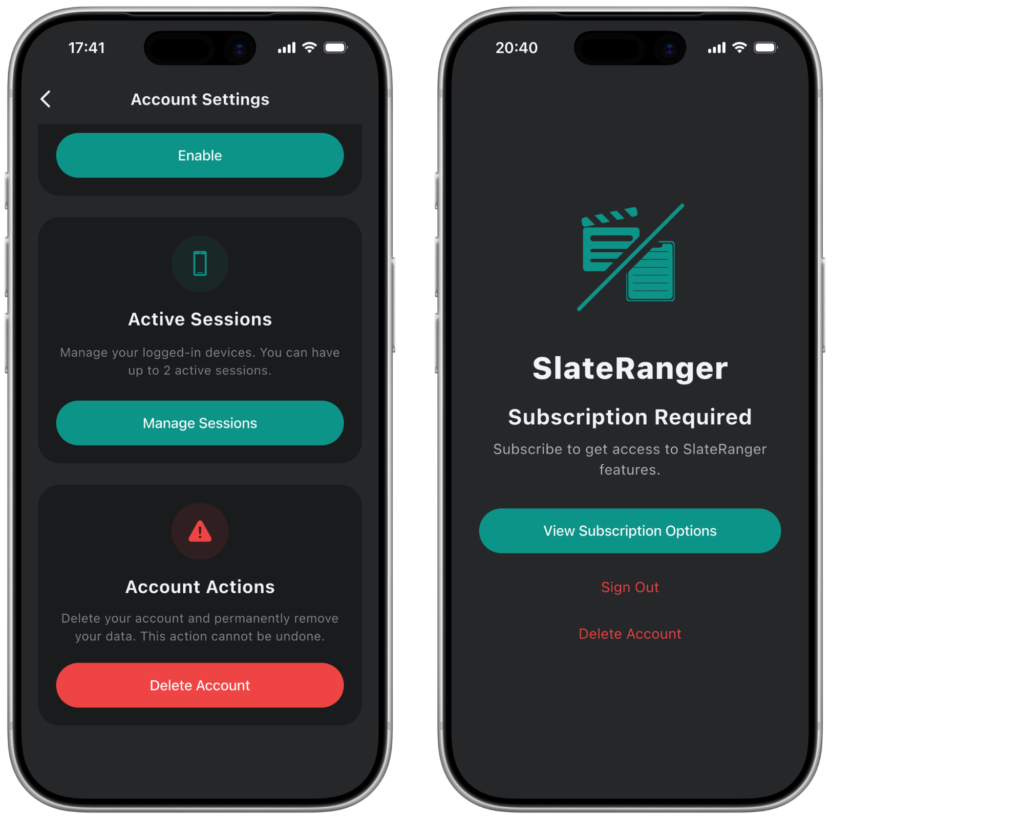
Delete with a subscription or team membership
If you have an active subscription or are a member in a team you can go to the More Screen, then go into the Account Settings, scroll down and then click the button “Delete Account”.
Delete without a subscription or team membership
If you don’t fall into one of the categories above, you cannnot enter the app and will see the Paywall.
iOS: Swipe down the Paywall to see the screen “Subscription Required” and click “Delete Account”.
Android: Go one step back when on the Paywall to see the screen “Subscription Required” and click “Delete Account”.
Web: Scroll down on the Paywall and click “Delete Account”.
Note: This action will delete all your data permanently – the data cannot be recovered.
If you have a subscription, all data gets deleted – inclduding project data. As a team member, only your personal data gets removed.
If you have trouble deleting your account, contact the support:
support@slateranger.com